
Jupiter Ed

Jupiter Ed (JE) is the digital grading platform system used with our 3rd thru 12th grade students. JE stores several key pieces of information including teachers’ calendars, assignments, and grades. Teachers use JE to communicate with students and parents. Each student and parent has their own respective account, and are asked to use JE to communicate with teachers and staff, confirm assignments, and view grades. Some assignments will be completed on or uploaded to JE. Parents are responsible for downloading any class information or grades for their personal homeschool record keeping from JE. UHC does not turn any records into the state or homeschool associations.
Each campus has its own Technology Coach to help with Jupiter Ed:
Greenville Elementary: Mrs. Kathryn Ferguson
Greenville Middle School and High School: Mrs. Meredith Landis
Spartanburg Campus: Mrs. Laura Erwin
Travelers Rest Campus: Mrs. Missy Kittrell
School: Upstate Homeschool Co-op
City: Taylors
State: South Carolina
Parent Tips
We ask parents to log into Jupiter Ed at least once a week. We are including some of our top Parent Tips to support your quest in serving our students.
Logging in:
- Your Parent account is linked to each student. You log in as Parent of Student Name.
- If you have a RETURNING Student, your login credentials are the same as the previous year.
- If you have a NEW to UHC Student or a 3rd Grader, your login credentials will be sent out Starting the first week of July with High School to the first week in August for Elementary
- Once co-op starts, you should log in and check on assignments, messages, etc at LEAST once a week.
- If you need assistance, you can request a password reset. Passwords may be requested here.
Receiving Text Alerts
- We ask that all Parents Go to the Settings option to receive Emergency Text alerts. See how here.
- Consider setting up Text alerts to help you remain in the loop with your child’s grades, attendance, and behaviors.
- NOTE: You will only receive texts for the items you chose, we do not send out Texts for anything other than important emergency information.

Have More Than one Student?
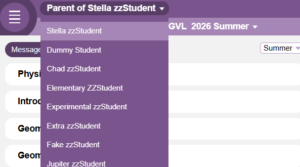
- Link your student account so you have one login for all your students.
- You still log in as Parent Of: Student Name. (Pick a child to log into)
- You must have the same email and password for your PARENT ACCOUNT for each Student. (Students should have a different password, and not use their parent’s email address)
- See how here.
Best Support for Your Students:
- Elementary-
- Log in at the beginning of the week as a parent, and set the schedule for the week.
- Have your student log in next to you and walk through the expectations.
- When doing online activities (videos, quizzes, etc), sit next to your child to help support with academic integrity and ensure they are focused on learning.
- Middle School
- Log in at the beginning of the week as a parent to set the schedule for the week.
- Establish student and parent routines at the beginning of the school year for consistent use of Jupiter Ed.
- Set weekly a meeting with your student to log in together, discuss assignment details, plan the week’s work, and affirm expectations.
- Sit next to your child when completing online activities (videos, quizzes, tests, etc) to support UHC Testing Policy and Procedures, academic integrity, and focused online learning.
- Check in DAILY during each co-op week to make sure your student is remaining up to date with assignments and due dates.
- High School
- Log in at the beginning of the week as a parent and know the expectations of the week.
- Set a meeting with your student discuss their plan for the week.
- Check in Daily to see if they need extra support, they are remaining on plan, etc.
- Schedule times to meet and proctor tests & quizzes, review large projects, and edit papers.
Juno Pod / Online Quiz Tips:
- Make sure your students select a color background that is easy to see their answers. See how here.
- Using a mobile device may show up differently and present a challenge, it is best to use a PC, Mac, Chromebook computer.
- During online tests, follow these steps to help proctor.
- Read your messages for the proctor code before a test begins.
- Make sure your student has enough time to complete the test start to finish.
- Make sure your student only uses tools allowed by the teacher, no outside tools.
- Some teachers may use “Lockdown Mode.”
- Students must remain on the Juno Pod Screen for the duration of the test.
- Going to other websites, apps, or screens will result in a warning (sometimes with a countdown) and then being locked out of the test.
- Students will not be able to leave the test and return.
Parents of 3rd-12th graders are responsible for downloading any class information or grades for their personal homeschool record keeping from Jupiter Ed. UHC does not turn any records into the state or homeschool associations. For the classes taken at UHC, parents can print needed items for plan book, portfolio (digital assignments), and progress reports. You can also print for your records the gradebook for your student. Keep in mind that parents are responsible for keeping attendance for their 180 days, UHC does not keep attendance records needed for Homeschool Accountability. Read the directions below or click here for a printable version of directions.
Plan Book/ Calendar:
You can keep up with lesson plans for each student with all their classes in one spot by printing from the Calender. This can be done at the end of a semester. However, you may find that it is best if you do this at the beginning of each month, or print each week as a check list and store for your record book.
-
- In JE, click the drop down menu.
- Click “Calendar”
- On the right hand side, find the toggle “This Week” and change to “Month” (if you want it by month)
- Use your computer’s print function to print or save as a PDF.
- Repeat each week.
Portfolio of Digital Assignments:
After a digital assignment is graded, you can go into the class dashboard (gradebook) and print the finished assignment showing your student’s work. You can then add this work into your student’s portfolio.
-
-
- Click the dropdown menu button.
- Select the Class Name
- Click on an assignment that was turned in digitally. (Juno Pods–> click “View”, Digital Uploads click on the file turned in.
- Use your computer’s print function to print or save as a PDF.
-
End of Semester Reports:
Upstate Homeschool Co-op provides 2 Report Cards. At the end of each semester, you can print the report card from UHC with the grades for the classes taken at UHC. Starting in 2026-2027, the End of Year Report Card will show both semesters and a final grade. A message will go out when grades are finalized and Report Cards are available. If you need a progress report before then, reach out to the Program Director and Jupiter Ed Contact Person so we can get that done for you.
Directions:
- In JE, Click the drop down menu button.
- Select Report Card.
- Use your computer’s print function to pint the report card.
- Repeat this by toggling between each student, if you have multiple students.
Frequently Asked Questions about JupiterEd
Enter the following information exactly as it appears for the school, city and state.
Student Name: (Your Student Name- even for Parent Accounts)
School: Upstate Homeschool Co-op
City: Taylors
State: South Carolina
NOTE: If you are new to UHC, do not try to create your own student or parent account. The JE staff will set up your account at the end of July or beginning of August starting with high school students first. You will receive a courtesy email notification from JE with a link to your account and instructions for setting your password.
No one needs an email account to use JE. However, most find it convenient to link an email address to their account. You may NOT use the same email address for a student account as your parent account or a sibling.
You will fill out this form to request a student password. The JE staff will send you their password.
It is very important that your student not have access to your parent account, but that they do know how to access their own account. Some reasons:
- UHC policy is that teachers and administrators will copy parents on all messages sent to students.
- There may be times when a teacher or administrator needs to send a message that is not intended to be seen by students. It could be a test for you to print out and administer, or it could be something of a sensitive nature.
- There are some homework assignments and quizzes or tests that are administered or turned in online. Parents cannot access these features through their accounts, although they will be able to see that the assignment has been made.
- JE provides a place for students to store documents they are working on and then later turn in. Parents cannot do this for their students.
- Teachers and administrators need to be able to tell whether a message was sent from the student account or the parent account.
Yes, but it is not available in the App Store. You can add JE to your mobile device to be bookmarked like an app.
See directions below for your device.
iPhone or iPad:
In Safari go to login.jupitered.com
Click the Share button
Scroll down and select “Add to Home Screen”.
*That saves the Jupiter Ed Logo that links to Jupiter Ed to your home screen.
Android Device:
In Chrome go to login.jupitered.com
Click the three dots button and select “Add to Home screen”.
*That saves the Jupiter Ed Logo that links to Jupiter Ed to your home screen.
Note: If anyone asks you for the “registration” number, they downloaded the wrong app — the “Jupiter Classes” app is not Jupiter Ed.
Check out our FAQ document for more frequently asked questions.