Middle School Assignment Guidelines
| 1. Assignment Dates to Note |
| Use Academic Calendars:
Do NOT assign homework on the following dates:
- Sept. 7, 2026: Labor Day
- Nov. 6, 2026: Dollywood Family Trip – NOTHING ON CALENDARS
- Nov. 23-27, 2026: Thanksgiving Break (you may choose to assign one day of work; no work assigned Wed-Friday)
- Dec. 2, 2026 – Jan. 11, 2027: GVL/TR Christmas Break. GVL/TR may assign work Tuesday, Dec 1. Contact Karla Partin for exceptions.
- Nov. 30, 2026 – Jan. 7, 2027: SPT Christmas Break. SPT may assign work on Friday, Jan 8. Contact Karla Partin for exceptions.
- March 22-26, 2027: Spring Break
Summer Homework (if applicable):
- Summer homework can only be assigned in classes where it has been designated beforehand in the course description. Summer homework for middle school can begin as early as August 11.
- Summer assignments are due the first day of class. No GRADED assignments before 1st day of class. Contact Karla Partin for questions.
|
| 2. GENERAL ASSIGNMENT SET UP
Each teacher is required to set up and date graded and non-graded assignments in their JE Gradebooks for the 2026-2027 school year. Your students can see the assignments by the month or even the entire semester in “calendar view” on JE. |
Read Assignment Set Up Directions in Jupiter Ed to review or watch a video.
- Set up assignments at least a month, 4 school weeks, in advance. Complete the entire semester if you would like.
- Title your assignments with verbs such as “SUBMIT,” “READ,” “COMPLETE,” “PRINT,” “WATCH,” “FINISH,” “STUDY,” etc… Ex: “SUBMIT Unit 2 Quiz”, “TURN IN Ch.1 Test”
- Use “SUBMIT” for Graded Digital Assignments:
- JE PODS: Test, Quiz, Homework
- Documents/Pictures of homework, tests, or quizzes to upload to an assignment
- Use “TURN IN” for Graded Hard Copy Assignments/Projects:
- Any work physically turned in at UHC class
- Include detailed instructions in the “Directions” box. For example, the assignment may be titled “Turn In First Draft Movie Review,” with these details in the Directions box: “Print out and bring to class your draft; attach a printed copy of the rubric.” You will then attach a blank rubric to the assignment.
- Date all assignments with the due date.
- Assignments must be coded as showing for at least 14 days before due
- Tests at least 3 days before due
- Projects paced out at the beginning of the semester or at least 30 days before due
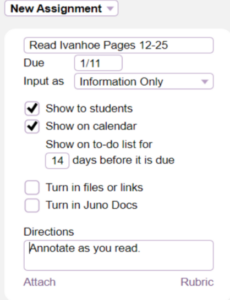
- Make sure “Show to student,” “Show on calendar,” and “Show on to-do list for 14 days before it is due” as seen here:

- Notify students and parents of any adjustments to your JE assignments but do not change an assignment in the current school week.
- Post necessary documents, worksheets/handouts, and rubrics that go with an assignment in JE Materials and also into the JE assignment using the “Directions” box and “Attach” option below it. (Documents must be Google doc or PDF) NOTE: We advise against using specific dates or even days of the week in direction boxes to avoid confusion with year to year transference of assignments.
- File weekly updates (if applicable) in JE Materials each week or create a “running update” google doc and post in JE materials. You can also assign reading the weekly update as a non-graded (“Information Only”) assignment on the day you want it read.
|
| 3. GRADED ASSIGNMENTS |
Hard Copy assignments are entered in the JE gradebook on the due date.
- Do not accept pictures of assignments that are to be turned in as hard copies unless arrangements are made with the teacher in the case of absence/illness.
- Do not print hard copies for students when they have printer problems.
Digital Assignments should be clearly listed in your JE gradebook and dated using time and date due for submission (ex: due at 11:59 pm on 9/18/26).
- Digital Due Dates Tests:
- Juno Pod tests are to be assigned/scheduled to be opened and submitted by students in one non-co-op weekday and must include a specific date and time for submission. NOTE: End of day for a test submission is default of 11:59pm
- NEW: Lockdown Mode in JE may be applied to a Juno Pod test with director permission followed by specific training from the JE coordinator.
- NEW: Use the “Block Paste” feature in JE for any assignment requiring a typed answer.
- Digital Due Dates Homework:
- Allowing a range of time for digital homework assignments to be completed offers the most flexibility for a homeschool family.
- GVL/TR: Open a digital assignment at the close of class on the co op Monday and close it before the start of class on the next co op Monday. Digital assignments will be counted as late in GVL/TR on Wednesdays.
- SPT: Open a digital assignment at the close of class on the co op Tuesday and close it before the start of class on the next co op Tuesday. Digital assignments will be counted as late in SPT on Thursdays.
- NEW: Use the “Block Paste” feature in JE for any assignment requiring a typed answer.
- Read complete instructions regarding Turn In Files.
- Do not assign a graded digital homework assignment, Test, or Juno Pod for the day of your UHC class.
- A Juno Pod is the only assignment that can be automatically set to “turn on” and “turn off.”
- Digital uploads may be set to be completed on a given date; there is no turn on or off setting.
- Students and parents will not see the assignment on the “To Do” list after the due date and time has passed unless it is marked “/” for missing.
|
| 4. NON-GRADED ASSIGNMENTS:
Students must see these daily assignments that are not “graded” on their to-do list and calendar. |
Non-Graded assignments include but are not limited to the following:
- Pacing assignments with clear page numbers/chapters/sections with problem sets assigned and dated on the day you want them completed. (Math example: Complete Section 2.1: 1-29 odds. Ex: Read Ch. 2 pages 25-35)
- Parts of a project, lab, or writing assignment broken down daily for students.
- Study reminders for a test or quiz (attach study guide in the direction box if needed)
- Video or slides to watch on a specific day of the week (attach note sheet or other tools in the direction box if needed)
Calendaring Non-Graded Assignments
- Input EACH non-graded assignment in the JE Gradebook as “Information Only” (not calculated into the grade). This method will transfer from year to year with a gradebook import.
|